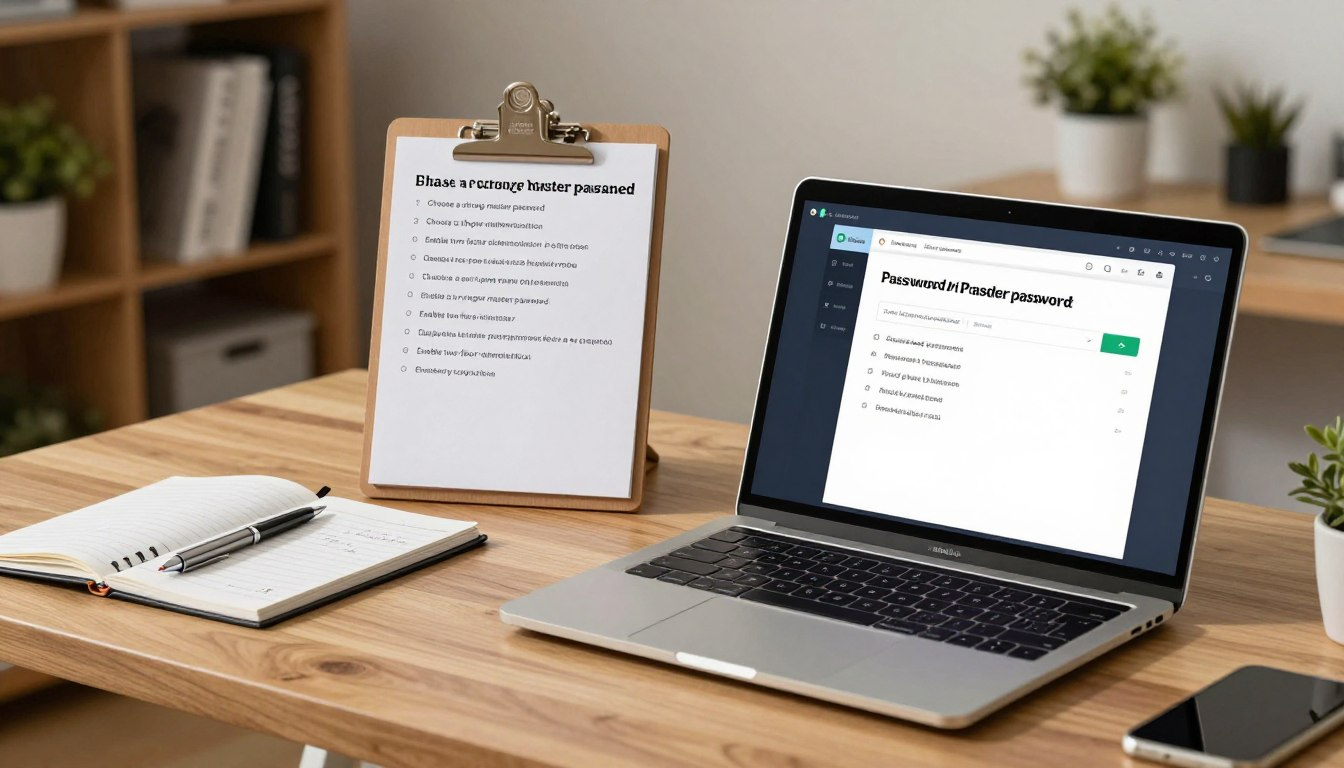
Did you know hackers exposed over 35 billion private records in just the last twelve months? This big increase in data leaks and advanced scams makes keeping your identity safe more important than ever.
The past year felt like a never-ending festival of security breaches for many people. You can take charge of your safety by changing old habits and using stronger defense methods like passkeys today.
Securing your online presence doesn’t need a computer science degree or weeks of stress. Our digital safety guide shows you how to keep your sensitive data safe and out of reach.
Spending just one evening on these updates will give you immense peace of mind for the rest of the year. Modern software does the hard work for you, so you never have to worry about complex sequences again.
Start your journey toward a safer digital life right now. You deserve to move through the web without the constant fear of a compromised account or stolen credit card details.
Why Tonight Is the Perfect Time to Set Up a Password Manager
As more data breaches happen, tonight is a great time to start using a password manager. Cyberattacks and data breaches are a big threat. So, keeping your passwords safe is very important.
The Growing Threat of Password-Related Data Breaches
More than 80% of data breaches are because of weak or stolen passwords. This shows how important strong password security is. A password manager helps by making and keeping unique, complex passwords for all your online accounts.
Using a password manager can greatly lower the risk of falling victim to password-related data breaches. With complex, unique passwords for each account, you reduce the risk of a breach affecting many accounts.
How Password Reuse Puts All Your Accounts at Risk
Using the same password for many sites is a big risk. If one site is breached, others can be too. A password manager keeps your passwords unique, so damage is limited in case of a breach.
Reusing passwords can lead to serious problems. A password manager helps you use unique passwords for each site. This protects your online identity.
The Time Investment That Pays Off Immediately
Setting up a password manager takes some time at first. But it makes your online security better right away. You’ll need to set it up, import passwords, and make new, strong ones. It might take a few hours, but the benefits are worth it.
The benefits start right away. You get increased security with unique, complex passwords. And you get convenience with auto-fill. By spending time on a password manager, you get better security and ease for all your online activities.
Choosing Your Password Manager Before You Begin

Before you start, pick the right password manager for you. There are many choices, but knowing the key features helps. This makes choosing easier.
Cloud-Based Solutions: 1Password, Bitwarden, and Dashlane
Cloud-based managers are easy to use on many devices. 1Password, Bitwarden, and Dashlane are top picks. They have strong security and are easy to use.
1Password is known for its security and travel mode. Bitwarden is open-source and customizable. Dashlane has lots of features, like password making and safe storage.
Offline Options: KeePass and KeePassXC
If you want offline storage, try KeePass and KeePassXC. They keep your data safe on your device. This adds extra security.
KeePass is a trusted open-source manager. KeePassXC has a new look and extra features like password making and 2FA.
Key Features That Matter for Security and Convenience
When picking a manager, think about security and ease. Some features are very important.
Cross-Platform Sync Capabilities
Being able to sync across devices is key. Find a manager with apps for your computer, phone, and browser. This lets you access your passwords anywhere.
Two-Factor Authentication Support
Two-factor authentication (2FA) adds more security. It needs your master password and another verification, like a code or scan.
Password Sharing and Emergency Access
Some managers let you share passwords and have emergency access. This is handy for sharing with trusted people or in emergencies.
Gathering What You Need Before Setup

Setting up a password manager needs some prep work. First, you need to know about your online accounts. This step is key for a smooth transition.
Creating an Inventory of Your Online Accounts
Start by listing all your online accounts. This includes email, social media, banking, and more. Knowing your online presence helps organize your passwords better.
To make this list, think about the types of online services you use. Use a spreadsheet or app to jot them down. This list will guide you through setup.
Locating Passwords Saved in Browsers and Notebooks
Then, find all passwords saved in browsers or notebooks. Browsers like Chrome and Firefox store passwords. You’ll need to export or write them down for your new manager.
If you have passwords in notebooks, collect them. It’s also a chance to shred or securely dispose of paper records to keep them safe.
Identifying Your Most Critical Accounts to Migrate First
Not all accounts are the same. Focus on email, banking, and financial services first. This keeps your most important info safe.
By prioritizing these accounts, you manage the setup better. It helps secure your most sensitive data first.
Setting Up Your Workspace for an Uninterrupted Session
Lastly, get your workspace ready for setup. Make sure your computer is charged and internet is stable. A clear workspace helps you focus.
Having a dedicated space and time for setup makes it easier. Try to minimize distractions to avoid mistakes.
Installing Your Password Manager and Creating Your Vault
Securing your online identity starts with a password manager and a vault. This step is key to managing your passwords well. It boosts your online security.
Downloading the Application for Your Primary Device
First, download the password manager app on your main device. This could be your computer, phone, or tablet. Make sure to download from the official site to stay safe.
Most apps work on Windows, macOS, iOS, and Android. Find the download link on the official website. Then, follow the instructions to install.
Creating Your Master Password the Right Way
Your master password is vital. It must be strong and easy to remember. Make it unique and not used elsewhere.
Using the Passphrase Method for Memorability
The passphrase method is great for a strong, easy-to-remember password. Pick a sequence of words that’s meaningful to you but hard for others to guess. Use a phrase that’s personal but not obvious.
- Choose words that are not related to each other.
- Ensure your phrase is at least 12 characters long.
- Avoid using your name, birthdate, or common phrases.
Avoiding Common Master Password Mistakes
Avoid simple passwords like sequential numbers or easily guessable info. Your password should be long and complex.
Key tips for a strong master password include:
- Use a mix of uppercase and lowercase letters.
- Add numbers and special characters.
- Don’t reuse passwords on different accounts.
Documenting Your Master Password Securely Offline
After creating your master password, store it safely offline. Write it down and keep it in a locked cabinet or safe. Avoid digital storage that could be hacked.
Use a password safe or secure note app that’s not online.
Setting Up Biometric Login on Mobile Devices
For mobile devices, use biometric login for extra security. This includes fingerprint, facial, or iris scanning. It adds a layer of security and makes access easier.
Password Manager Setup Checklist: Essential Configuration Steps

Setting up your password manager is key to keeping your online life safe. After you install it, follow some important steps. This will help you use all its security features.
Step One: Enable Two-Factor Authentication for Your Vault
Two-factor authentication (2FA) adds extra security to your vault. Even if someone guesses your master password, they can’t get in without the second check.
Choosing Between Authenticator Apps and Hardware Keys
You can pick between authenticator apps and hardware keys for 2FA. Apps like Google Authenticator or Authy give you a code on your phone. Hardware keys, like YubiKey, use a physical method.
- Authenticator Apps: They’re easy to set up and popular for 2FA.
- Hardware Keys: They offer top security for those needing extra protection.
Saving Your Backup Codes Safely
When you set up 2FA, you get backup codes. Keep these safe, like in an encrypted note in your password manager or a safe.
Step Two: Configure Emergency Access Contacts
Setting up emergency access lets trusted people get into your vault in an emergency. It’s great for businesses or families needing to access passwords quickly.
Step Three: Adjust Security Settings and Auto-Lock Timers
Changing your password manager’s security settings and auto-lock timers boosts its safety. A shorter auto-lock timer locks your vault faster. You’ll need to enter your master password or 2FA to get back in.
Step Four: Install Browser Extensions on All Your Browsers
Putting browser extensions for your password manager on all browsers is a must. They help with auto-fill and password capture. This makes logging in easier and keeps your passwords safe.
Step Five: Download and Set Up Mobile Apps
Getting the mobile app for your password manager lets you access your passwords anywhere. Make sure to turn on security features like biometric login to keep your vault safe on mobile.
Importing Your Existing Passwords Safely

Now that you’ve set up your password manager, it’s time to import your passwords. This means exporting them from your browsers, then importing them into your manager. Make sure to securely delete the exported files.
Exporting Passwords from Google Chrome
To export passwords from Google Chrome, follow these steps:
- Open Chrome and go to Settings.
- Click on “Passwords” and then select “Saved passwords.”
- Click on the three dots next to the password you want to export and select “Export passwords.”
- Choose a location to save the CSV file and confirm.
Remember to store this file securely, as it contains sensitive information.
Exporting from Firefox, Safari, and Edge
The process for exporting passwords varies slightly between browsers:
- Firefox: Go to Settings > Privacy & Security > Saved Logins > Export Logins.
- Safari: You may need to use a third-party tool or enable the “Show Develop menu” in Preferences > Advanced to export passwords.
- Edge: Similar to Chrome, go to Settings > Profiles > Passwords > Export passwords.
Importing CSV Files into Your Password Manager
Once you’ve exported your passwords, you can import them into your password manager. The exact steps may vary depending on the password manager you’re using, but generally, you’ll:
- Log in to your password manager.
- Go to the “Import” or “Settings” section.
- Select the CSV file you exported earlier.
- Confirm the import process.
Securely Deleting Exported Password Files
After importing your passwords, it’s important to securely delete the exported CSV files. You can:
- Use a secure file deletion tool to erase the files.
- Manually delete the files and empty your recycle bin.
Ensure that you have confirmed the passwords have been imported successfully before deleting the files.
Reviewing Imported Entries for Duplicates and Errors
After importing, review your password manager vault for:
- Duplicate entries.
- Incorrect or incomplete information.
This step ensures that your password manager is accurate and up-to-date. It provides you with the best possible security and convenience.
Adding and Organizing Your Priority Accounts
First, install your password manager. Then, add your most important accounts. This makes your online life safer and easier to manage.
Starting with Email Accounts and Password Recovery
Start by adding your email accounts. They are key to accessing other services. Securing your email logins is very important to keep your other accounts safe.
Make sure to use strong, new passwords for your email. Your password manager can help with this. It’s key to protecting your online identity.
Securing Banking and Financial Service Logins
Then, focus on your banking and financial logins. These have your financial info and are targets for hackers. Use strong, unique passwords for each account. Also, think about adding extra security like alerts for transactions.
Adding Work-Related and Professional Accounts
If you have work accounts, add them too. This includes emails and project tools. Keeping these accounts secure helps you manage your work passwords better.
Organizing with Folders, Tags, and Categories
As you add more accounts, organizing them is key. Your password manager has folders, tags, and categories for this. They help you manage your accounts better.
Creating a Logical Folder Structure
Make a folder structure that fits your online life. You might have folders for personal, work, finance, and social media.
Using Tags for Quick Filtering
Use tags to categorize your accounts further. Tags are great for accounts that need updates or extra security. Tags help you organize in a flexible way that works with your folders.
Generating Strong Passwords and Updating Weak Ones
Securing your online presence starts with strong, unique passwords. Use your password manager to update weak ones. This step is key to protecting your digital identity.
Understanding What Makes a Password Strong
A strong password is hard for humans and computers to guess. It should mix letters, numbers, and special characters. Longer passwords are more secure.
Avoid using your name, birthdate, or common words in your password. Choose a random mix of characters. You can remember it or store it securely with your password manager.
Using Your Password Manager’s Generator Tool
Your password manager has a tool to create complex passwords. This tool lets you set password length and character types.
Customizing Length and Character Requirements
When generating a password, pick its length and character types. For security, mix letters, numbers, and special characters.
Creating Memorable vs. Maximum Security Passwords
While secure passwords are best, they can be hard to remember. Your password manager stores them for you. This way, you can access them without remembering them.
Running a Security Audit to Find Weak Passwords
Most password managers have a security audit feature. It finds weak or compromised passwords. Regular audits help keep your passwords secure.
Systematically Updating Compromised and Reused Passwords
Update weak or compromised passwords systematically. Start with critical accounts like email and finances. Then, update less sensitive ones.
Prioritizing Which Passwords to Change First
Update passwords for accounts with sensitive info first. This includes email, banking, and any account that could access your data.
By following these steps and using your password manager, you boost your online security. This protects your digital identity from threats.
Storing Additional Sensitive Information Securely
Your password manager can keep more than just passwords safe. It turns into a digital vault for all your sensitive data. This means your login details and other important info are all protected.
Adding Credit Card and Payment Information
Putting your credit card and payment info in your password manager makes shopping online easier. You won’t have to type it in every time you buy something. Most managers let you save card numbers, expiration dates, and security codes.
To add credit card information: Go to the payment section in your manager, fill in the details, and save. Make sure you know how your manager keeps this info safe.
Creating Secure Notes for Important Documents
Secure notes are a great feature in most password managers. They’re for storing sensitive info like insurance numbers and medical records.
Storing Insurance Policy Numbers and Medical Information
For insurance and medical info, make a new secure note. Put in policy numbers, provider info, and other important data. This keeps it safe and easy to find when you need it.
Keeping Wi-Fi Passwords and Router Details
You can also save your Wi-Fi passwords and router details in secure notes. This is handy for managing networks at home, work, or public spots. Just make a note for each network with the SSID, password, and settings.
Saving Software Licenses and Product Keys
Software licenses and product keys are key for reinstalling apps. Keep them in your password manager for easy access. Make a note for each license with the key, agreement, and other info.
Managing Two-Factor Authentication Backup Codes
Two-factor authentication (2FA) backup codes help you get back into accounts if you lose your main 2FA. Store these codes in your password manager. Most have a special section for this.
Best Practice: Check and update your password manager info often. This keeps it current and safe.
Testing Your Password Manager Across All Devices
After setting up your password manager, test it on all your devices. This ensures a smooth and secure experience. It’s important to check that all features work right and your data syncs across platforms.
Verifying Auto-Fill Functions in Desktop Browsers
First, test the auto-fill in your desktop browsers. Go to sites you often log in to. See if the password manager fills in your login info correctly. Make sure the browser extension is installed and set up right to avoid problems.
If you run into trouble, check your browser extension settings. Make sure the password manager is turned on for the browsers you’re using.
Testing Password Capture and Save Prompts
Next, test the password capture by logging into a new account or changing a password. The password manager should ask to save the new login info. Make sure it works well on different websites and browsers.
Also, check that the save prompts aren’t too pushy. You should be able to ignore them if you don’t want to save a password.
Checking Mobile App Auto-Fill on iOS and Android
On your mobile devices, test the auto-fill in apps and browsers. For iOS and Android, make sure the password manager is set up right in your device settings. Check that auto-fill works well in both portrait and landscape modes.
Confirming Sync Works Properly Between Devices
To check syncing, log in to your password manager on one device. Make a change, like adding a new password. Then, see if the change shows up on your other devices. This makes sure your data is up to date everywhere.
Give syncing some time, as it might take a bit. It depends on your internet and the password manager’s sync schedule.
Troubleshooting Common Setup Issues
If you run into problems, like auto-fill not working or syncing issues, look at your password manager’s support resources. Many problems have easy fixes, like updating the app or changing settings.
- Check for updates to your password manager apps and browser extensions.
- Make sure two-factor authentication is set up right and not causing login problems.
- Look at your device settings to make sure they match the password manager’s needs.
Conclusion
Now you’ve finished your password manager setup checklist. You’re closer to better online security. By following this guide, you’ve secured your key accounts and made password management easier.
Keep your security strong by checking your passwords often. Update weak ones, watch your account activity, and make sure your password manager is on all devices.
Using a password manager daily and sticking to your checklist helps protect your digital world. Stay alert and update your security to have a safer online life.
FAQs
Q: The Growing Threat of Password-Related Data Breaches
A: Every year, billions of login details are stolen in big data breaches. Hackers use these stolen details to try to log into thousands of other sites. A password manager keeps your other accounts safe, even if one site is hacked.
Q: How Password Reuse Puts All Your Accounts at Risk
A: Using the same password for Netflix and Chase is a big mistake. It lets thieves into your financial life. A manager makes it easy to have a strong, unique password for every site you use.
Q: The Time Investment That Pays Off Immediately
A: Setting up a secure password manager takes about an hour. But it saves you hours of trouble later. You’ll never have to reset a password again, and logging in will be easy.
Leave a Reply